
Table of Contents
Navigation Path: Dashboard > Daily Fantasy > Events
Create an Sport Event #
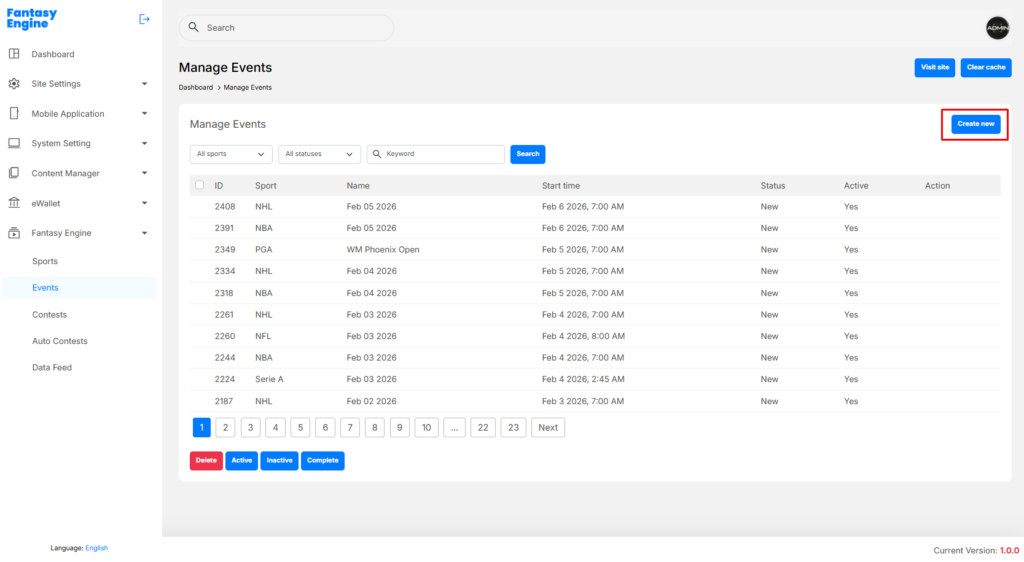
Event creation is a step-by-step process, starting with selecting a Sport.
Step 1: Select Sport
- Click Create New
- Select a Sport
- Click Next
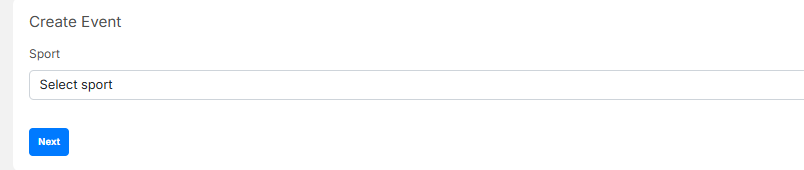
Step 2: Enter Event Details
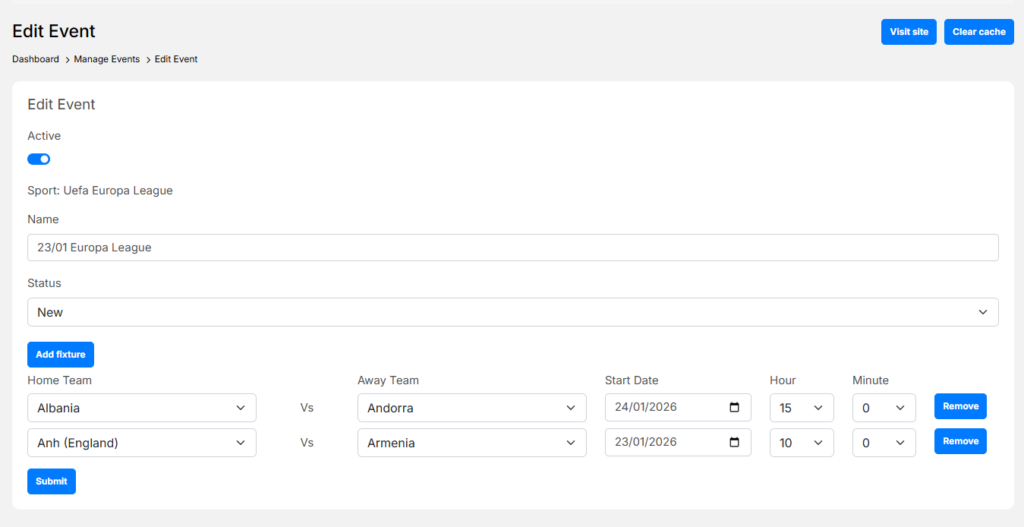
- Enter Event Name
- Select Status
- New (default)
- Complete
- Live
- Toggle Active if the event should be available
- Click Add Fixture to add match details

Step 3: Add Fixture
For each fixture:
- Home Team
- Away Team
- Start Date
- Hour / Minute
You can:
- Click Add Fixture to add multiple fixtures
- Click Remove to delete a fixture

- Click Submit to create the event
✅ The event will appear in the Manage Events list.
Manage Sport Events #
The Manage Events page displays all created events.
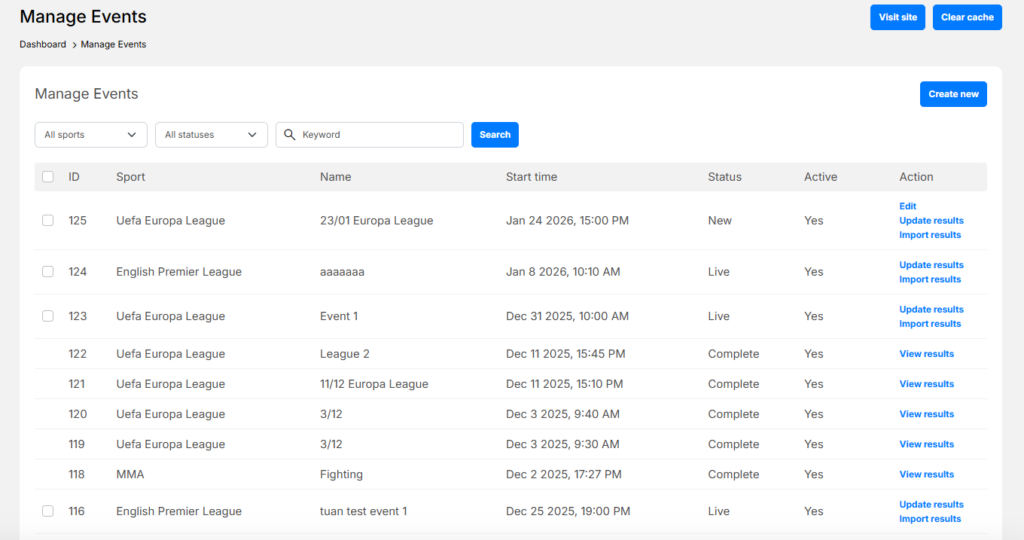
Edit an Event #
- Go to Manage Events
- Locate the event
- Click Edit
- Update:
- Event name
- Status
- Fixtures
- Start time
- Active status
- Click Submit to save changes
📌 Changes apply immediately unless the event is already completed.
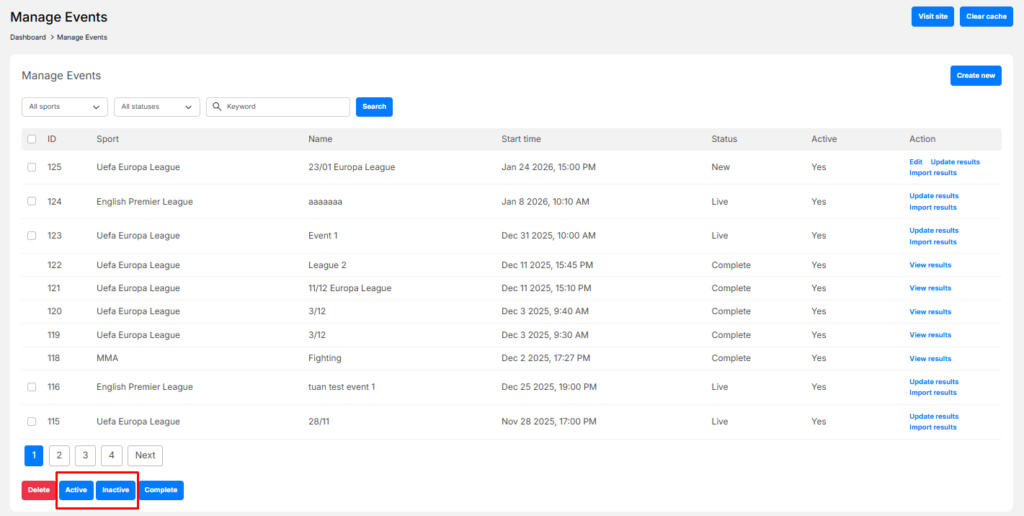
Activate / Inactivate Events #
- Go to Manage Events
- Select one or more events using checkboxes
- Click:
- Active – to enable events
- Inactive – to disable events
Complete an Event #
Completing an event finalizes results and scoring.
Steps to Complete an Event
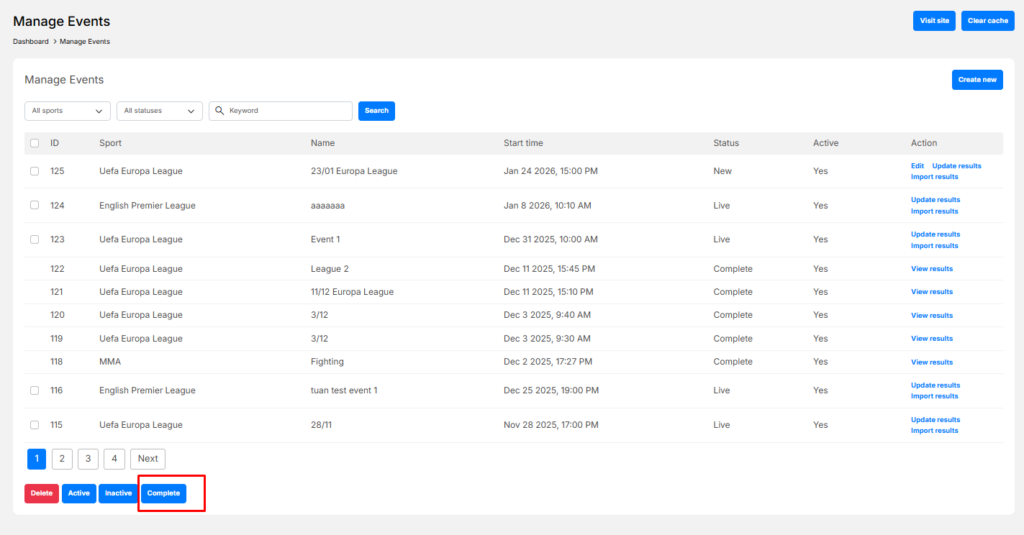
- Go to Manage Events
- Ensure event results are updated
- Use Update Results or Import Results
- Select the event
- Click Complete
✅ Once completed:
- Event results are locked
- Scores and rankings are finalized
- The event can no longer be edited


