
Table of Contents
The Import / Export feature allows administrators to quickly manage sports data in bulk using Excel files. This is especially useful for setting up leagues, teams, player positions, players, and scoring categories, as well as updating results.
1. Access Import / Export #
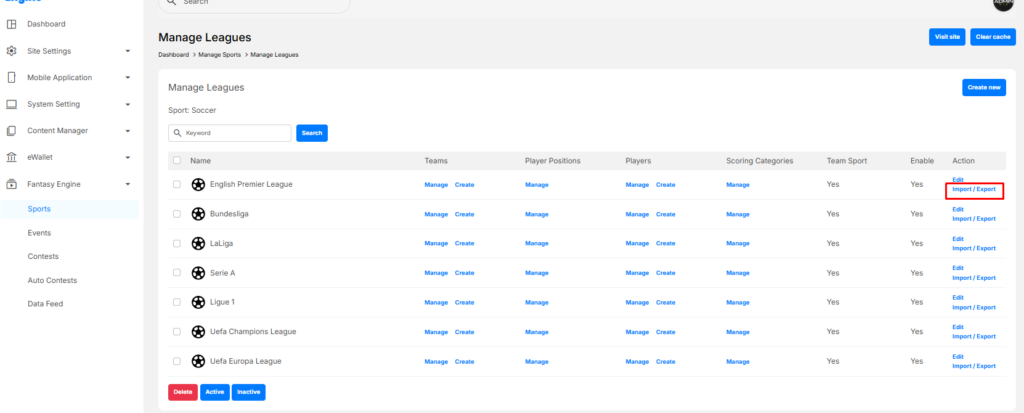
- Go to Dashboard → Sports → Choose a Sport (e.g. Soccer) → Manage Leagues
- In the Action column of a league, click Import / Export
2. Export Data Template #
Before importing, you should always export the template first.
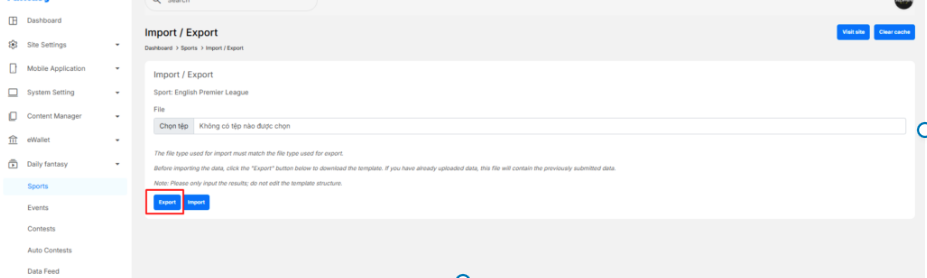
- On the Import / Export page, click Export
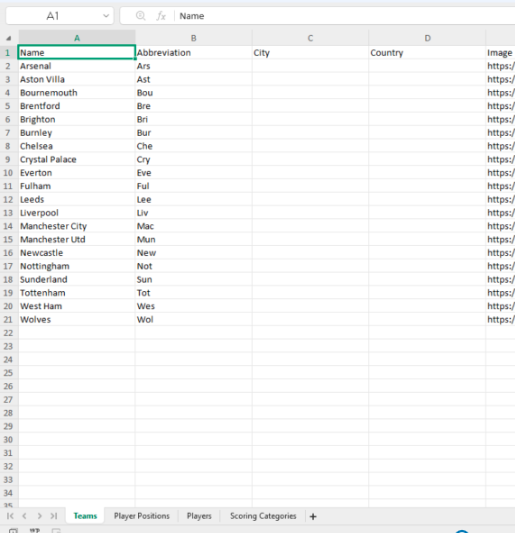
- The system downloads an Excel file containing multiple sheets, such as:
- Teams
- Player Positions
- Players
- Scoring Categories
3. Import Data #
After editing the Excel file:
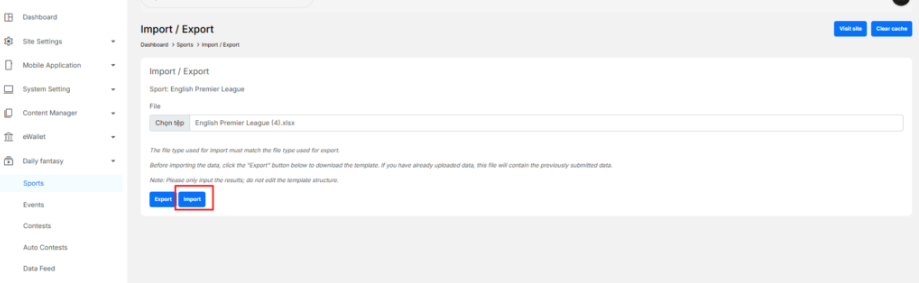
- Return to the Import / Export page
- Click Choose file
- Select the edited Excel file
- Click Import
The system will:
- Validate the file format
- Update or insert data into the system
- Apply changes immediately
4. Best Practices & Notes #
- ✅ Always Export first, then edit
- ❌ Do not rename sheets or columns
- ❌ Do not remove required columns
- ✅ Only update cell values (text, numbers, URLs)
- ✅ Ensure Item Key matches the data feed exactly
- ⚠️ Incorrect formatting may cause import failure


