
Table of Contents
Only available if you use use data api.
1. Purpose of API URL & API Key #
The API URL and API Key are required to:
- Connect Fantasy Engine to the Data Feed provider
- Sync sports, events, schedules, teams, players, and statistics
- Enable Auto Contests and automatic contest creation
- Keep contest results and stats up to date
⚠️ If these values are incorrect, real data will not be synced.
2. Configure API URL & API Key #
Step 1: Open General Settings #
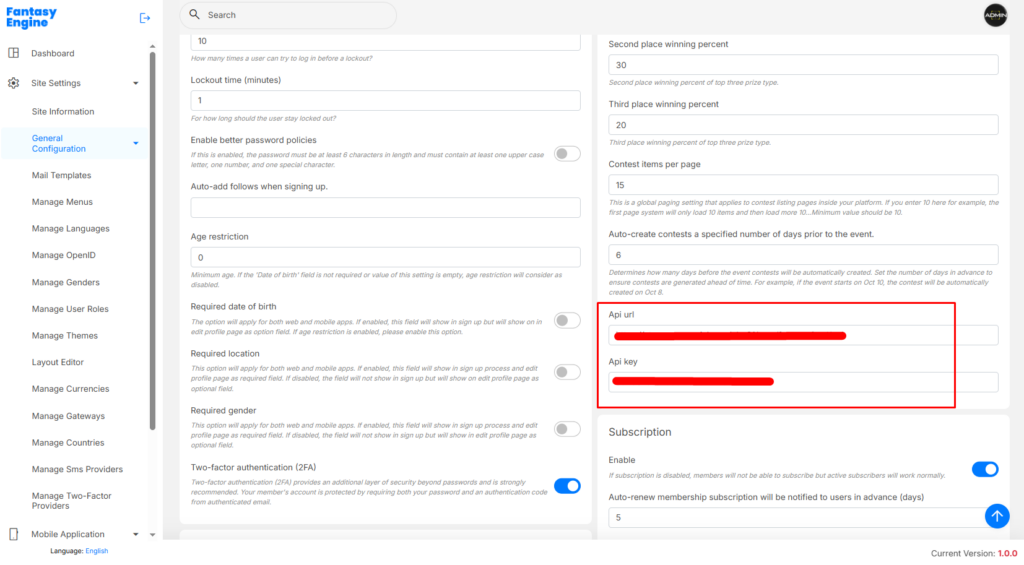
Navigate to: Admin Dashboard → Site Settings → General Configuration → Fantasy Engine
Step 2: Enter API Information #
Locate the API Configuration section and fill in:
- API URL
- API Key
📌 Notes:
- API URL must be the exact endpoint provided by the Data Feed service
- API Key must be valid and active
- Do not add extra spaces before or after values
Step 3: Save and Clear cache #
3. Sync Real Data from Data Feed #
Step 1: Open Data Feed Page #
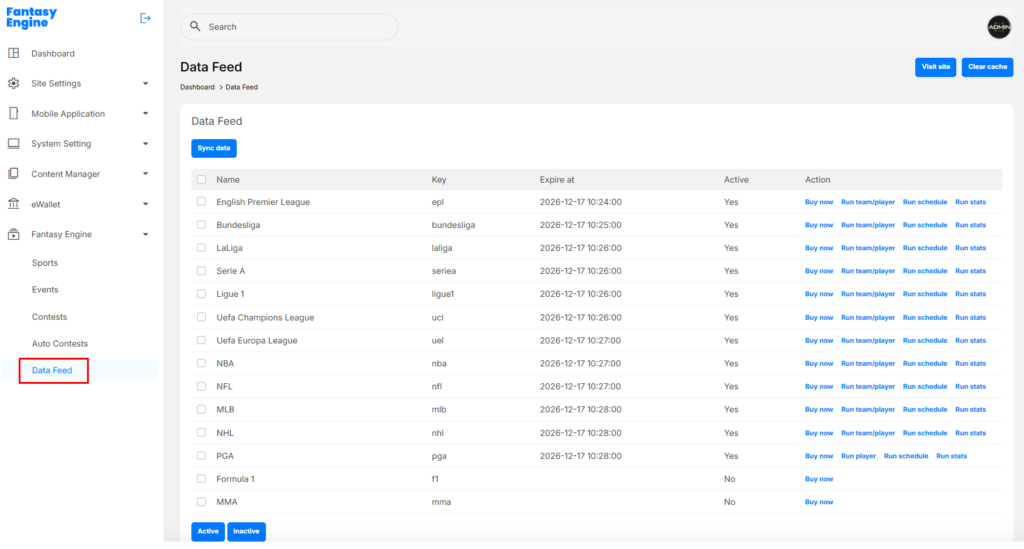
Navigation path: Admin → Fantasy Engine → Data Feed
Step 2: Check Data Feed Status #
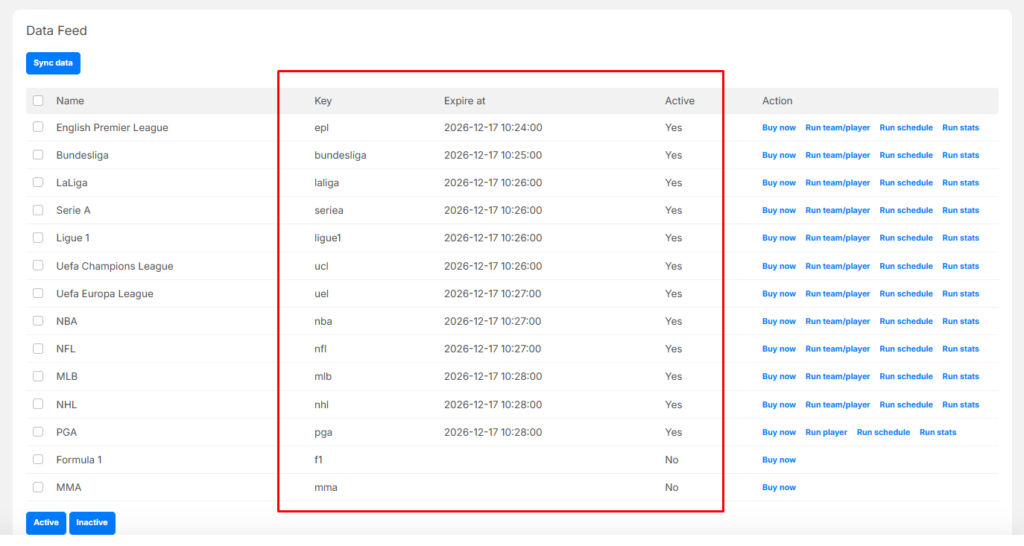
Verify the following columns:
- Active = Yes → Data can be synced
- Expire at → API access is still valid
- Key → Internal sport identifier (epl, nba, nfl, etc.)
If a sport shows Buy now / Inactive, real data is not available.
Step 3: Sync Data #
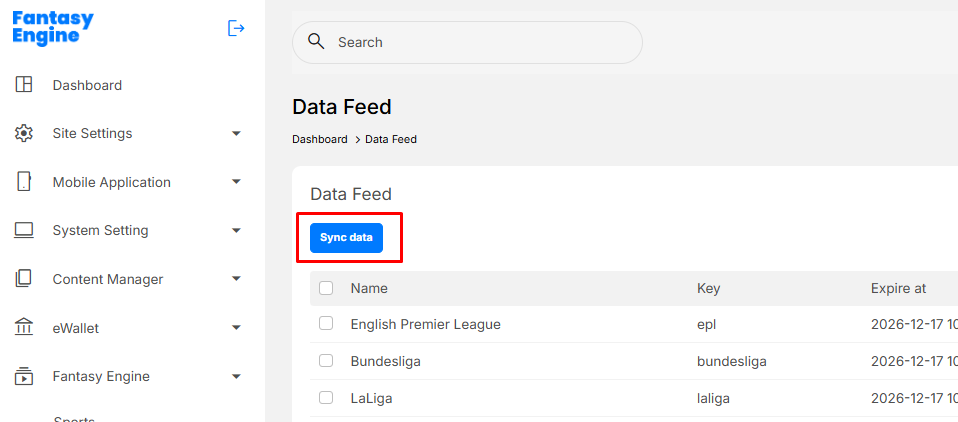
- Click Sync data (top of the page)
- System will fetch all available data from the API
4. Verify Synced Data #
After syncing, check:
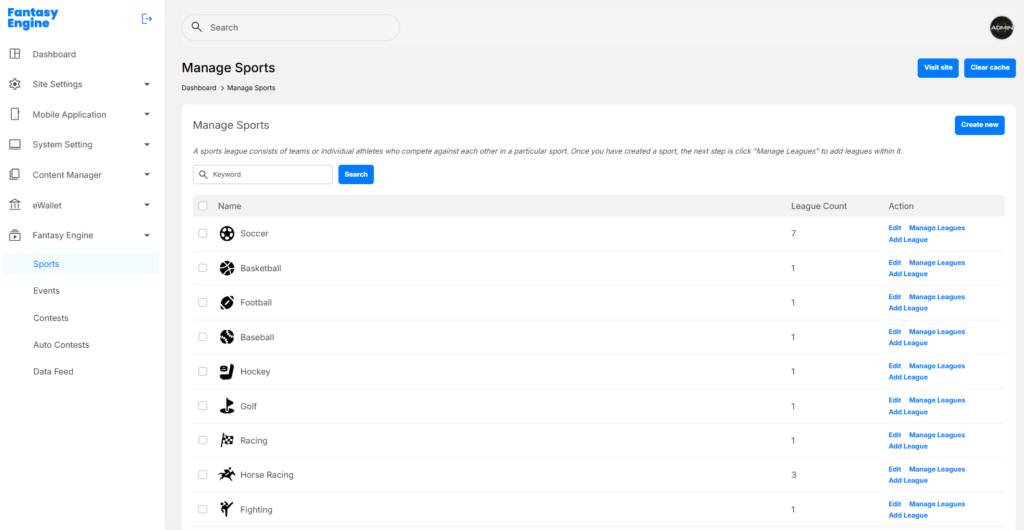
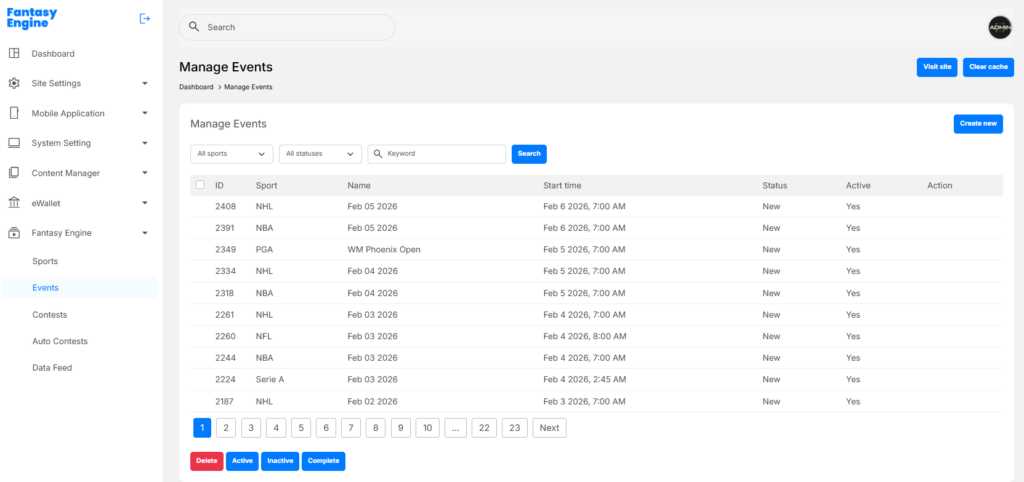
- Sports / Events → New schedules appear
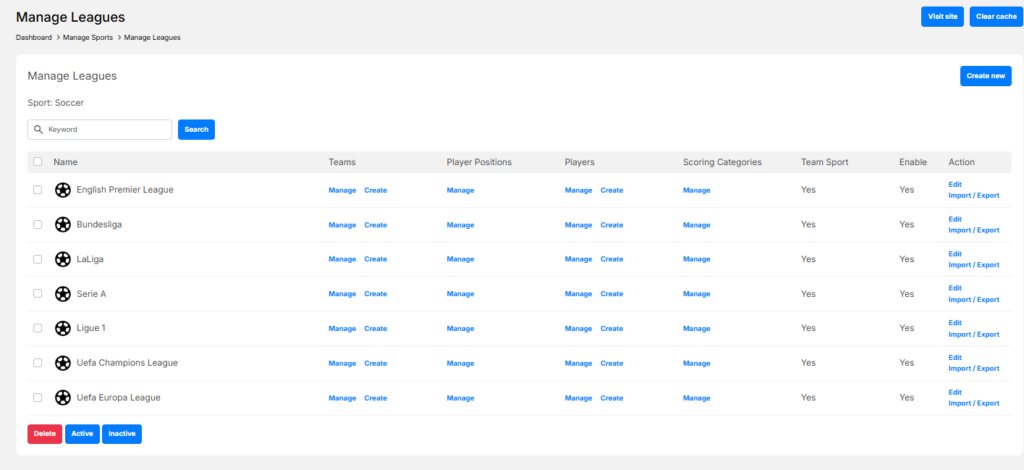
- Teams and players are displayed correctly
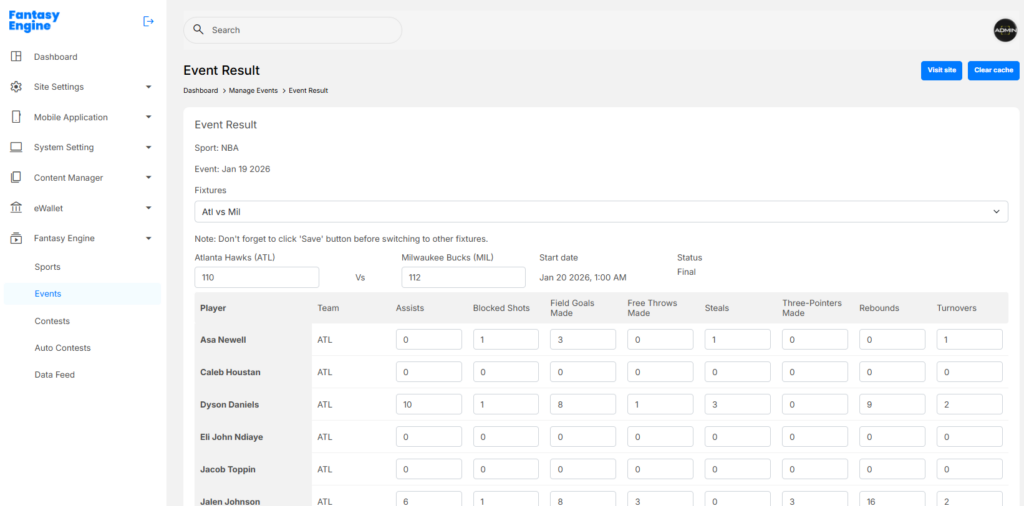
- Event Result and Statistics


